

Terminal tour

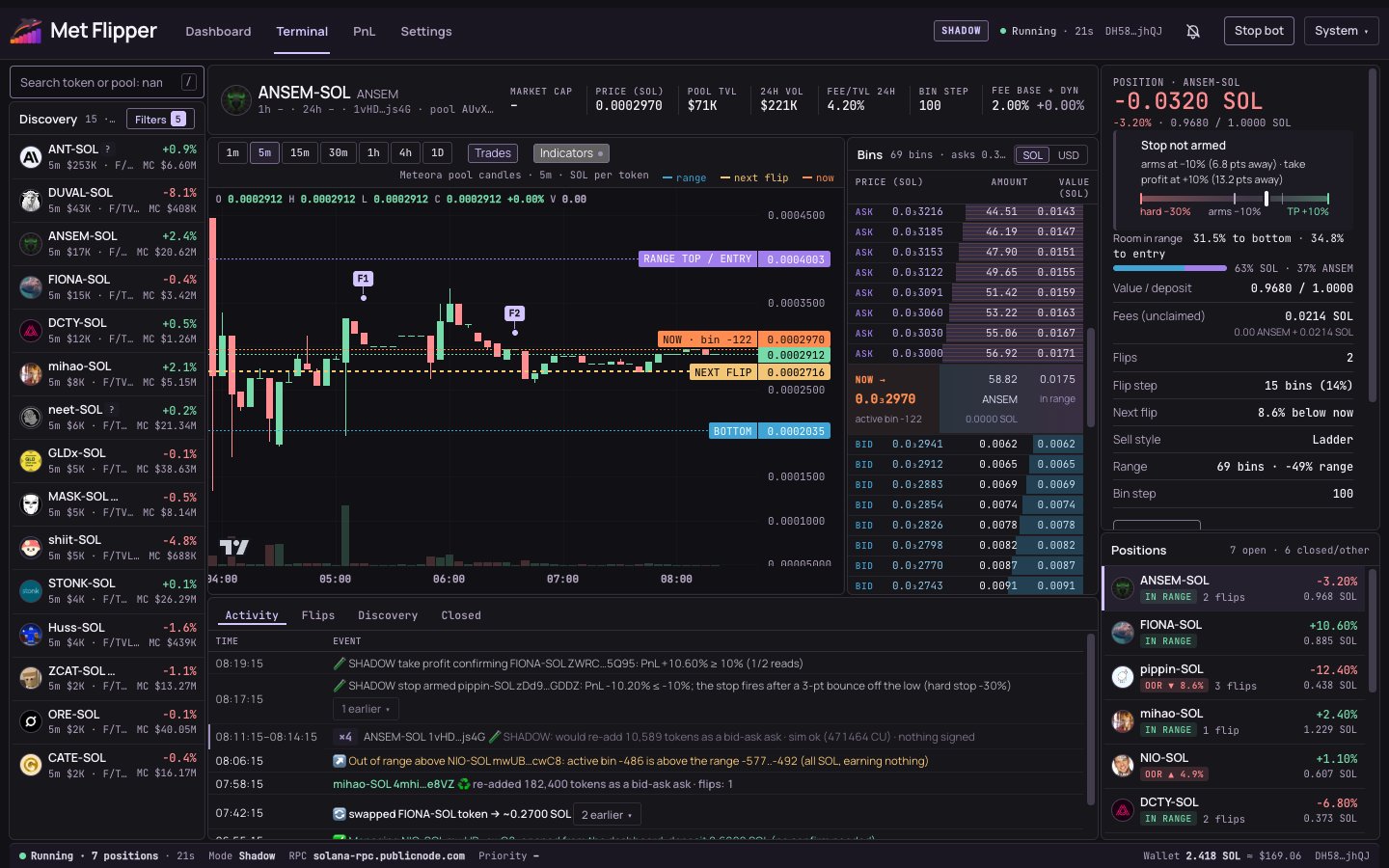
Terminal with a demo position selected: search and Discovery on the left; pair header, candles with range, next-flip and now lines, and the bins book in the middle; the position panel and Positions on the right.
Layout
Three columns:
- Left: the search box, then Discovery (with a Filters button showing how many are set).
- Centre: the pair header (market cap, price in SOL, pool TVL, 24h volume, Fee/TVL 24h, bin step, base + dynamic fee), then the chart with the Bins book next to it, then the tabs Activity · Flips · Discovery · Closed.
- Right: the selected panel on top (a position, or an order ticket for a pool) and your Positions list below. Drag the divider between them (or focus it and use ↑ / ↓); the split is remembered.
- A status bar along the bottom: run state, mode, RPC host, priority fee and wallet balance.
↑ / ↓ move through Discovery, then Positions, in the order you see them; Esc clears the selection. A closed position stays selectable so you can review its trades.
Search

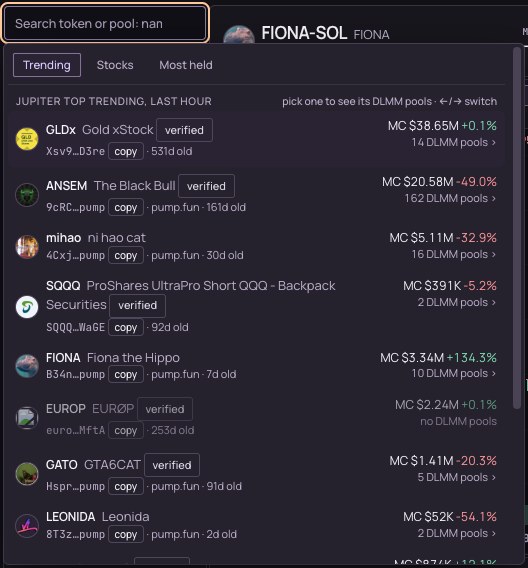
Empty search box: Trending, Stocks and Most held lists.
Press / anywhere on the Terminal to jump to the search box. Type a name, symbol or address (2+ characters) to search Jupiter tokens and Meteora DLMM pools together. ↑ / ↓ move through results, Enter picks one, Esc closes the list.

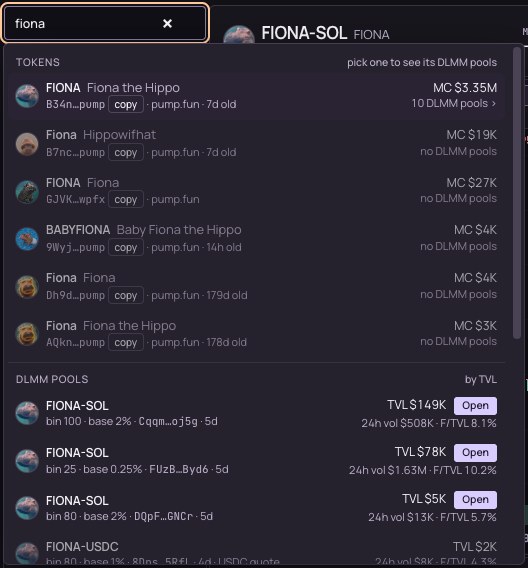
Results for a name: tokens (pick one to list its DLMM pools), then DLMM pools by TVL with an Open button.
- Pick a token to drill down to its DLMM pools.
- Paste a mint that has DLMM pools and it jumps straight to that token's pools.
- Pool rows show bin step, base fee, TVL, 24h volume and Fee/TVL; SOL-quoted pools have Open. Pools quoted in something else (USDC…) are listed but the bot only manages SOL pools.
With the box empty, three lists appear (← / → switch between them):
| List | What it shows |
| Trending | Jupiter top trending, last hour |
| Stocks | tokenized stocks, by 24h volume |
| Most held | most holders among today's active tokens |
Order ticket and Open
Selecting a pool you're not in shows an order ticket in the right panel: amount, range depth and sell style. A position panel has Open another on this pool with the same ticket. Open (from the ticket, a search row or Discovery) brings up the cost review before anything is sent.

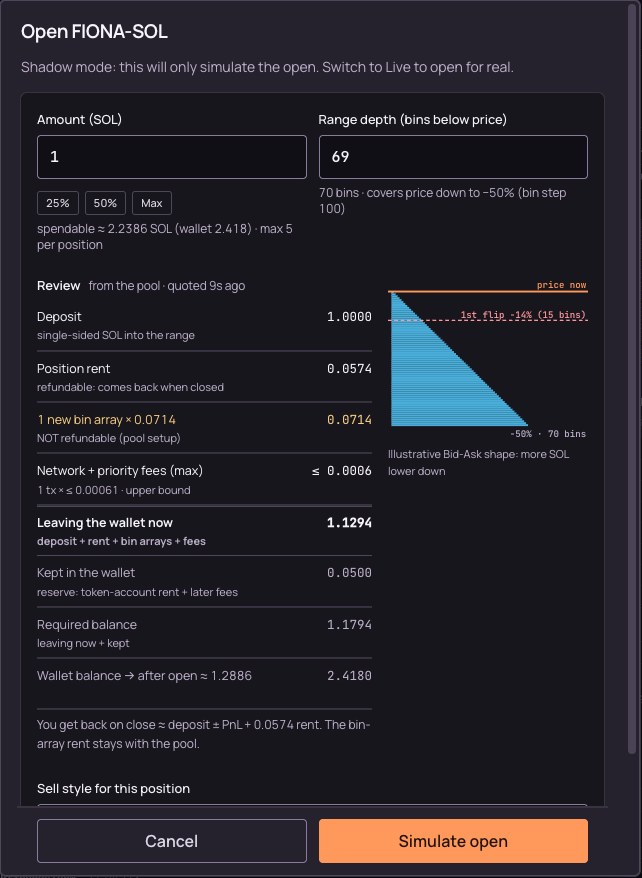
Open dialog with the cost review: deposit, refundable position rent, non-refundable bin arrays, the fee upper bound, what leaves the wallet, the reserve kept and the balance after. Shadow mode only simulates. Demo quote.
See Opening positions for every line of the review.
Candles
Timeframes 1m · 5m · 15m · 30m · 1h · 4h · 1D. 5m and up come from Meteora pool candles (15m is built from 5m); 1m comes from GeckoTerminal because Meteora doesn't offer 1m. The legend shows the source, timeframe and denomination (SOL per token) plus O H L C, change and volume at the crosshair.
For a selected position the chart draws range top / entry, now (with the active bin), next flip and bottom lines; labels that would overlap on the price axis merge into one.
Indicators

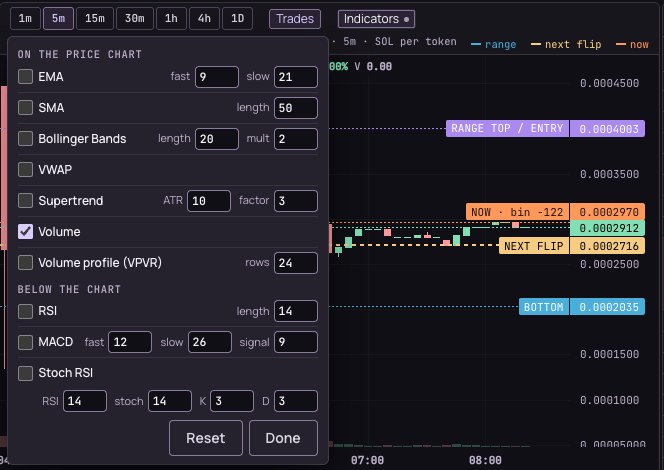
The Indicators menu: overlays on the price chart and panes below it, each with its own lengths.
Indicators in the chart header adds:
- On the price chart: EMA (fast / slow), SMA, Bollinger Bands, VWAP, Supertrend, Volume, Volume profile (VPVR).
- Below the chart: RSI, MACD, Stoch RSI.

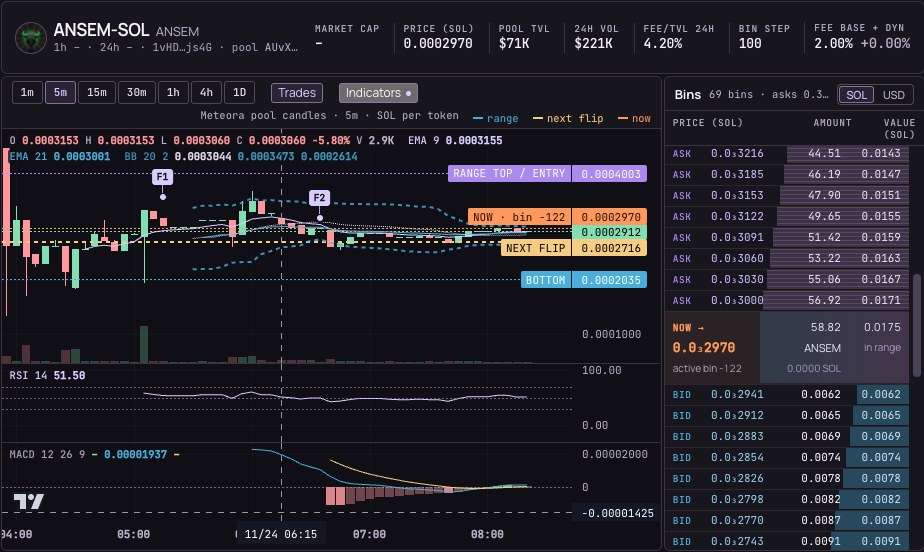
EMA 9/21 and Bollinger Bands on the price chart, RSI and MACD panes below.
They use TradingView's formulas; each pane has a legend that follows the crosshair, and Reset restores the defaults. Indicators are for reading the chart; the bot does not trade on them.
Trade bubbles

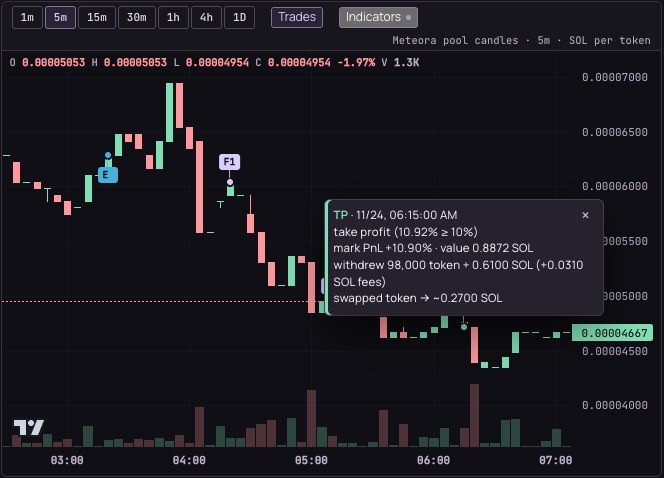
A closed demo position: entry, two flips and the take-profit exit, with the TP bubble opened.
| Bubble | Meaning |
| E | entry |
| F1, F2… | flips, in order (F1* = a simulated shadow flip) |
| C | auto-compound |
| TP · SL · HS · OOR · Sold | the exit: take profit, stop loss after bounce, hard stop, out-of-range timer, manual close |
| swap | the token → SOL swap after the close, shown in the exit bubble |
Bubbles sit at the exact time and price. Hover or focus one to open its card (time, reason, PnL, amounts, the swap) with Solscan links. Trades in the chart header turns bubbles on or off. In Live mode only real flips are drawn.
Bins book

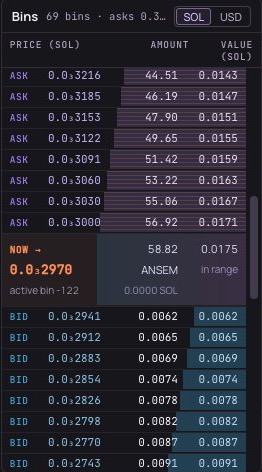
Bins book beside the chart: asks above, the active bin, bids below.
Your position's bins as an order book: price, amount and value per bin, asks above, bids below and the active bin in the middle. SOL | USD in the pane header shows prices, values and ask / bid totals in SOL or in dollars at the live SOL price (amounts stay in their own token). Your choice is remembered.
On a phone
The Terminal stacks into one column with Chart · Bins · Position · Activity tabs under the search box and Discovery. See Phone layout.